
When you send emails through Clubworx, you can choose to use your own email address (like hello@yourgym.com) as the ‘From’ address. This shows recipients the email has come from you, and makes sure any replies will go to your address.
Authenticating your domain is a one-time setup that tells email providers like Gmail and Outlook that these emails really are from you. It helps more of your emails reach members' inboxes instead of being marked as spam, and it makes your business look more professional and trustworthy.
You set it up once, and it covers every address at your domain.
Why it's worth doing- More of your emails get delivered
Providers like Gmail and Outlook check that a sender is genuine before letting messages through. Without authentication, your emails may land in spam or be blocked. - Your business looks more legitimate
Authenticated emails are clearly tied to your domain, which builds trust with members. - It keeps you in line with email provider rules
Most now expect businesses sending emails to their users to authenticate their domain, especially at higher volumes. - It covers your whole domain
Once it's done, every address at your domain (like hello@yourgym.com and info@yourgym.com) is set to deliver. You don't need to set up each one separately.
Authenticating your domain only takes a few minutes, and most of the technical work can be handled for you. You’ll just need to have a couple of things beforehand:
- A custom domain
Authentication only works for a domain your business owns, like yourgym.com. Free email addresses (such as gmail.com, outlook.com or hotmail.com) and other addresses from domains you don’t own can't be used. - Access to your domain host
This is where your domain or website is managed, for example GoDaddy, Squarespace, Wix or Crazy Domains. If someone else looks after your website, it's worth giving them a heads up, as you may need to sign in to your host during setup.
Clubworx partners with Entri to set this up for you automatically. Entri connects securely to your domain host and adds the right records on your behalf, so there are no technical records for you to copy by hand.
If you prefer, you can also add the records manually by selecting ‘manually authenticate your domain’ from the Entri window.
Step 1: Start the setup
Ensure you are logged into Clubworx as your account owner.
Admin users can begin from by navigating to Message settings: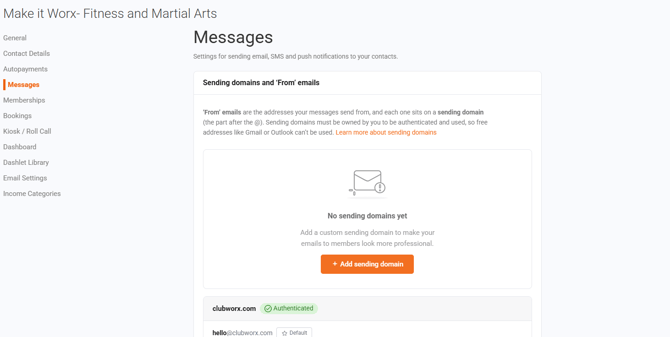
- Open the Settings menu in the top navigation bar and select Account profile.
- Choose Messages from the menu on the left.
- Find the domain you’d like to use in the list (or add a new email address if it’s not there) and click Authenticate.
Step 2: Continue with Entri
- A window will appear letting you know that Clubworx uses Entri to configure your domain.
- Select Continue.
- Entri will look at your domain and detect where it's hosted.
Step 3: Sign in to approve
- Entri will ask you to sign in to your domain host (for example GoDaddy or Squarespace).
- Signing in gives a one-time, secure permission for Entri to add the settings. Your login details aren't stored.
- Once you approve, Entri adds the right records for you automatically.
That's it from your side. Entri only adds what's needed, so nothing else on your domain or website changes.
What happens nextAfter setup, Clubworx checks that everything is in place.
- While it's being confirmed, the domain will still appear as Unauthenticated. This usually takes just a few minutes, but can take up to 48 hours for your domain host to finish updating.
- You can keep using Clubworx as normal in the meantime.
- Once it's done, the domain shows a green Authenticated label, and emails from that domain also show an Authenticated label in From fields throughout Clubworx.
Important: Once your domain is authenticated, please don't remove or change the records that were added to your domain host. Doing so can stop your emails authenticating and may affect your delivery. If you ever need to make changes to your domain, contact our support team first.
If something isn't workingOur support team is happy to help, and can even set it up with you - Contact support
A few terms you might come acrossYou don't need to understand these to set things up, but you may see them mentioned along the way.
- DNS: the system that connects your domain name to the services it uses, like your website and email. It's where the authentication settings live.
- DNS records (CNAME, TXT): the individual settings that get added to your domain. Entri adds these for you.
- DKIM and DMARC: the email standards that prove your messages are genuinely from you. Authenticating your domain sets these up behind the scenes.
For any further questions or queries, please don't hesitate to contact support via support@clubworx.com